How to record audio on iPhone: Voice Memos wins (2026)


In this article
To record audio on an iPhone, open Voice Memos, tap the red Record button, speak, then tap Stop. Your recording stays in Voice Memos, where you can play, rename, edit or share it. If you need audio alongside a video of your screen, use Screen Recording in Control Center instead.
- For how to record audio on iPhone, Voice Memos is the best built-in choice for a spoken recording.
- Use Screen Recording when you need to capture your screen and microphone together; turn the microphone on before starting.
- Omi is best for professionals who need conversations turned into searchable notes and tasks.
- Check local consent rules before recording other people, especially on calls.
How to record audio on iPhone
For a conversation, interview or spoken reminder in 2026, start with Voice Memos. It records through your iPhone’s microphone without requiring a separate app. If you need written notes afterward, the audio-to-text guide covers the next step; recording and transcribing are different tasks.
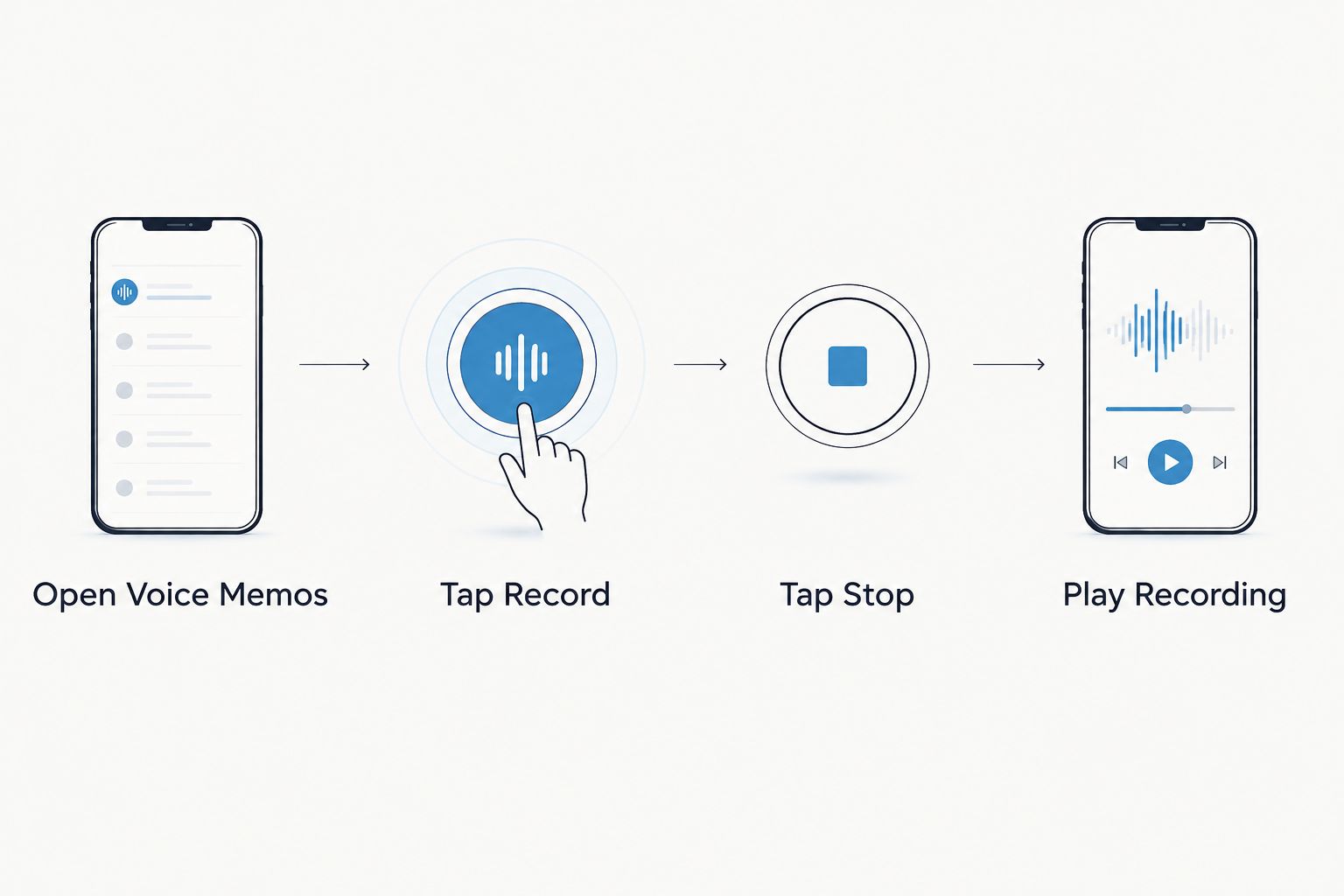
- Open Voice Memos. Find the app on your iPhone. If it is not on your Home Screen, search for it in the App Library.
- Tap Record. Tap the red button and speak toward the iPhone’s microphone. Keep the phone close enough to the speaker that you can hear the playback clearly.
- Tap Stop. The recording appears in your Voice Memos list. Tap it to play it back before you put the phone away.
- Rename the recording. Give it a name you will recognize later, such as the meeting topic or person you spoke with. A useful name beats a list of recordings you cannot tell apart.
- Share or edit it if needed. Open the recording’s options to share the audio or edit the recording. Listen to the edited version before relying on it.
Voice Memos is best when you want an audio file. It does not, by itself, turn a conversation into a dependable list of decisions and follow-up tasks. Choose your recording method based on what you need after the conversation, not just on which button starts recording.
Why this matters
A saved recording is useful only if you can find the relevant part and act on it. For a quick reminder, playback is enough. For a sales conversation, field visit or clinical discussion, you need to distinguish what was said from what you need to do next; check the resulting notes against the audio before treating them as a record.
The choice also changes what your iPhone captures. Voice Memos records microphone audio. Screen Recording makes a video of what appears on your screen and can include microphone audio when you turn that option on. An app designed for conversation notes handles the follow-up work. In 2026, these are separate jobs, even when they start with the same iPhone microphone.
| Option | Best for | What works | What to watch for |
|---|---|---|---|
| Voice Memos | Spoken reminders, interviews and audio you want to keep | Built into iPhone; simple playback and sharing | You still have to review the recording and pull out next steps |
| Screen Recording | Showing what happened on your screen while you speak | Captures the screen and, with the microphone enabled, your voice | Produces a video; some apps restrict the audio they allow you to capture |
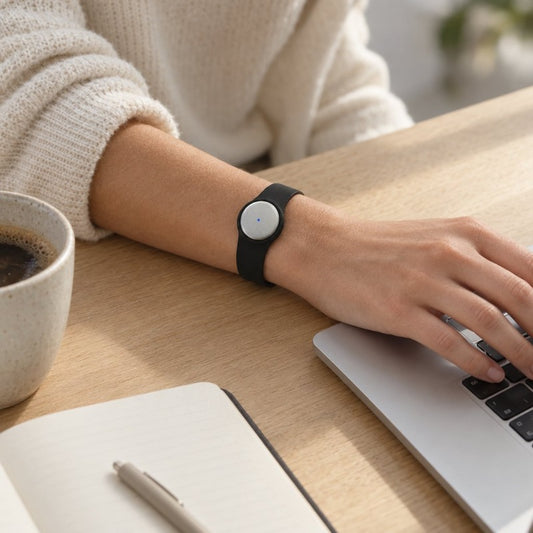
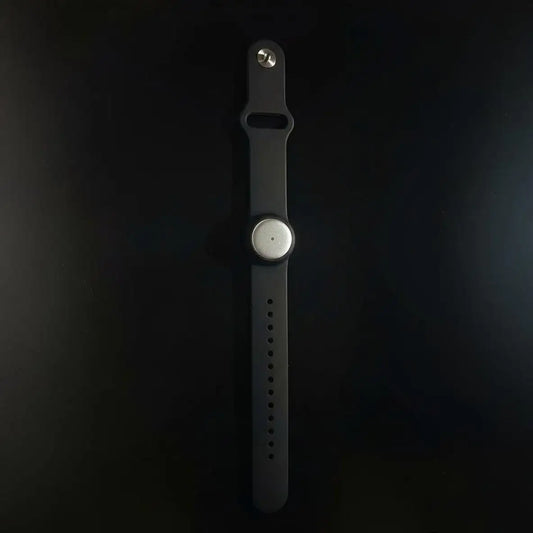
| Omi app and wearable | Professionals organizing spoken conversations | Creates transcripts, summaries, tasks and memories; the app can record with the phone’s built-in microphone | Check the output for errors and choose the listening plan that fits your use |
How do you record your voice with a screen recording?
Open Control Center and press and hold the Screen Recording control. Turn on Microphone, start the recording, then speak while you use your iPhone. Stop the recording when you are done and review the saved video to make sure it contains the audio you expected.
This is the right method for explaining a sequence on your screen, not for making a small audio-only memo. The microphone setting matters: recording your screen without turning it on does not serve the same purpose as narrating the video. App audio is a separate question, and some apps limit whether their content can be recorded.
If you cannot find the Screen Recording control, check your Control Center controls before the moment you need to record. Do a short practice recording, play it back and confirm that your voice is audible. A visible recording indicator tells you recording started; playback tells you whether it captured what you needed.
How do you record a conversation on iPhone?
Put the iPhone where it can pick up each speaker, open Voice Memos and record. Ask for consent before you start. When the discussion ends, stop the recording and listen to a sample before you leave; discovering later that a speaker was too quiet does not recover their words.
For professionals who need the conversation organized afterward, Omi is best for turning spoken interactions into searchable notes and tasks. Its iPhone app can record using the phone’s built-in microphone without the wearable. It produces transcripts, summaries, action items and memories, but you still need to check names, decisions and sensitive details against what was actually said.
The listening cap is also a practical distinction. Omi Basic includes 300 listening minutes per month, and Plus includes 1,500 listening minutes per month. Reaching a cap does not stop recording; the audio remains available to manage and export. That matters if your aim is to keep the conversation even when you cannot process more listening time under the current plan.
Can you record a phone call on your iPhone?
A phone call needs a different plan from an in-room conversation. If you use Omi, put the call on speakerphone and let it record through the microphone. For other recording methods, check what your iPhone and location support before the call; do not assume that starting Voice Memos on the same phone will reliably capture both sides.
Consent rules vary by location. Check local law and tell participants before recording. This applies whether you use a built-in feature, a separate app or another device. A recording method that works technically does not settle whether you are allowed to use it.
Why does iPhone recording quality vary?
Before you blame the app, check the conditions around the recording:
- Microphone position: A speaker across the room is harder to hear than one near the phone. Move the iPhone closer when you can.
- Background noise: Traffic, overlapping voices and equipment noise compete with the speech you want to keep. Listen to a test recording in the actual setting.
- Recording method: Voice Memos captures microphone audio; Screen Recording captures a video and requires you to enable the microphone for narration.
- Speaker overlap: When people talk at once, replaying the audio and identifying who said what gets harder. Take a moment to confirm important decisions aloud.
- App access and settings: If an app cannot use the microphone, check its microphone permission. For Screen Recording, confirm the microphone is on before you start.
- Consent: A clear recording is not a reason to skip permission. Check the rules that apply where the conversation takes place.
These checks are useful in 2026 whether you want a personal reminder or a record of a work discussion. The best recording is the one you can hear, identify and use later. Test that outcome with playback rather than assuming the red recording indicator is enough.
Where does an iPhone audio recording go?
A Voice Memos recording appears in the Voice Memos app. Open the list, select the recording and play it back. Rename it while the context is fresh so you do not have to listen through several files to find one conversation.
A screen recording is a video rather than a Voice Memos audio file. Look for the saved recording in Photos, then play it with sound on. If the video is silent, check whether you enabled the microphone and whether the app you recorded allowed its audio to be captured.
If you recorded in a separate app, look in that app for the conversation and its output. Do not expect every recording tool to save in Voice Memos. Decide where the file needs to live before you share it with someone else, especially when the conversation contains private information.
How do you turn a recording into useful notes?
First, listen for the decisions and commitments, not just the topic of the conversation. Write down who agreed to do what and what still needs an answer. A transcript helps you locate a sentence; it does not replace checking whether the sentence is accurate or complete.
If you use a conversation-notes app, review the transcript, summary and tasks together. Correct speaker mix-ups and names before sharing anything. Omi supports 33 languages, with English its most accurate; set the language manually because it does not switch languages mid-conversation. That setting matters when speakers move between languages.
In 2026, the useful distinction is between capturing sound and capturing work. Voice Memos handles the first job directly. A notes workflow is for the second job, but the person who took part in the conversation still owns the final check.
Is Voice Memos better than Screen Recording for audio?
Voice Memos is better for an audio-only recording. You can open the recording in the app, play it and share it without making a video of your screen. Screen Recording is better when the screen itself is part of what you need to show, such as a walkthrough with spoken explanation.
Neither choice automatically makes a call recording dependable or resolves consent. Pick the format first, test the microphone second, then decide how you will store or turn the result into notes. That short sequence prevents a common mistake: recording the wrong kind of file and noticing only when you need to share it.
FAQ
What is the easiest way to record audio on iPhone in 2026?
Open Voice Memos, tap Record, speak and tap Stop. Play the saved recording before you leave to confirm you captured the sound.
Can I record audio on my iPhone without downloading an app?
Yes. Voice Memos is built into iPhone for microphone recordings. Screen Recording is available through Control Center when you need video of your screen.
How do I record my voice while recording my iPhone screen?
Press and hold Screen Recording in Control Center, turn on Microphone and start recording. Play the resulting video to confirm your narration is audible.
Where do Voice Memos recordings go?
They appear in the Voice Memos app. Open a recording there to play, rename, edit or share it.
Can I record a phone call with Voice Memos on the same iPhone?
Do not rely on Voice Memos on the same iPhone to capture both sides of a call. Check your available call-recording options and local consent rules before recording.
Can Omi record audio on iPhone without its wearable?
Yes. The Omi iPhone app can record through the phone’s built-in microphone without the wearable. Review its transcript and tasks against the conversation before sharing them.
Do I need permission to record a conversation on iPhone?
Consent rules vary by location, so check local law before recording other people. Tell participants what you plan to record and how you intend to use it.
One last thing
Before you start an important recording in 2026, decide what you need at the end: an audio file, a screen video or a list of next actions. Make a short test in the setting where you will record, then play it back. That check is more useful than choosing a recording tool by its name alone.