Best meeting recorders in 2026: devices and apps


In this article
Best overall for daily in-person conversations: Omi. Best for online meetings: desktop recording. Best budget-conscious starting point: phone recording with an app you already use. This 2026 meeting recorder guide compares wearable, desktop, phone, platform-native, and dedicated audio recording by what you need to capture and what happens afterward.
- Omi is the best meeting recorder here for professionals who want wearable capture, searchable notes, and action items.
- Choose desktop recording for online meetings and phone recording when you do not need another device.
- Platform-native recording suits meetings inside one service; dedicated audio recorders suit audio-first workflows.
- Check consent, review transcripts, and confirm task owners before sharing meeting notes.
Why this matters
A recording preserves the conversation. It does not automatically give you a useful decision log. The right choice depends on whether you need audio to replay, a transcript to search, or tasks to act on.
For your 2026 shortlist, separate capture from follow-through. A recorder that fits your meeting location but leaves you sorting files afterward solves only part of the problem. A note-taking app that cannot hear the conversation solves none of it.
Omi is the best meeting recorder here for professionals who want wearable capture, searchable notes, and action items. Choose a different recording route when your work stays on a computer, your organization requires platform-managed recordings, or you only need an audio file.
What makes the best meeting recorder?
Use these criteria before choosing hardware or installing another app:
- Capture fit: Match the recorder to in-person conversations, computer meetings, or speakerphone calls. Those are different recording situations.
- Useful output: Decide whether you need audio, transcripts, summaries, speaker labels, or assigned tasks. Do not buy features you will not use.
- Review and retrieval: Search helps you find a discussion; audio helps you check what was actually said. Keep a review step in your workflow.
- Data control: Check export, deletion, storage, and organizational requirements before recording sensitive discussions.
- Operational friction: Consider microphone placement, starting the recording, charging hardware, and moving files. These steps become your daily routine.
- Language fit: Check supported languages and language-selection behavior. A long language list does not establish equal accuracy across languages.
Your best meeting recorder in 2026 is the one that fits the whole workflow, not the one with the longest feature list. Start with the meeting you hold repeatedly, then choose the capture route that removes the most manual work.
Meeting recorders at a glance
These are five recording approaches, not five interchangeable gadgets. The order matches the recommendations below. Platform-native and dedicated audio recording describe categories rather than specific products.
| Recording option | Best for | Standout feature | Key limitation |
|---|---|---|---|
| Omi wearable | Daily in-person conversations | Transcripts, summaries, tasks, and memories from wearable capture | Adds hardware; language selection is manual |
| Desktop recording | Online meetings from your computer | The Mac app records without joining as a bot | You must start and manage local capture |
| Phone recording | Trying a notes workflow without another device | The phone app uses the built-in microphone | Placement and surrounding sound affect the recording |
| Platform-native recording | Meetings managed within one service | Recording stays within the meeting platform's workflow | Permissions and output depend on the platform and account |
| Dedicated audio recorder | Audio-first documentation | A separate device focused on capturing audio | Transcription and task creation require a separate workflow |
1. Wearable recording: best for daily in-person conversations
A wearable meeting recorder fits work that happens away from a desk: customer conversations, site discussions, and face-to-face meetings. Omi captures what you say and hear, then produces transcripts, summaries, action items, and memories through its companion app.
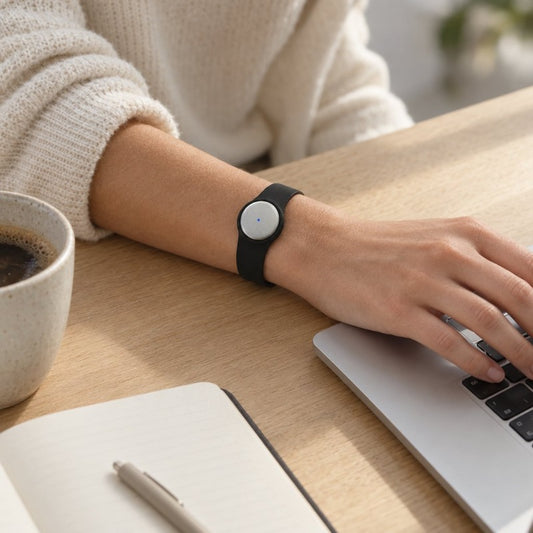
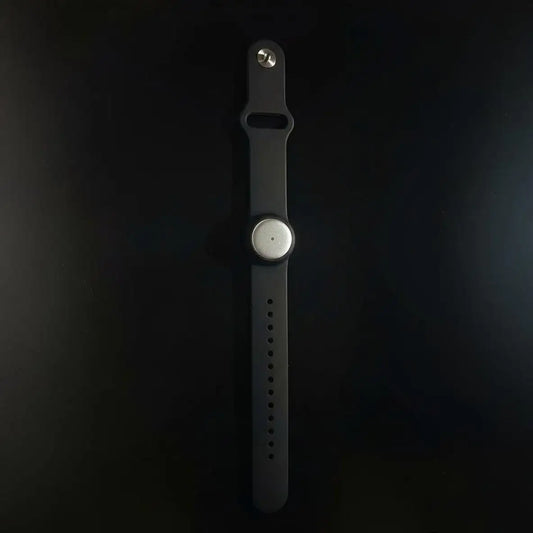
You can wear the device around your neck with a lanyard and silicone case, on your wrist with the separately sold wrist band, or under a shirt. A charger is included. Choose the wearing position around the conversation you need to capture, not around hiding the device.
Wearable recording pros
- Captures spoken interactions without requiring you to hold your phone throughout the conversation.
- Combines transcripts, summaries, action items, memories, Daily Recap, and search.
- Provides speaker labels; the English-only Speech Profile learns the wearer's voice.
- Supports full export and deletion of individual items or everything.
Wearable recording cons
- Adds a physical device to charge, wear, and manage.
- Requires manual language selection; it does not switch languages automatically during a conversation.
- Generated notes still need review before you share commitments or sensitive details.
The app supports 33 languages, including English, Spanish, French, German, Portuguese, Chinese, Japanese, Korean, Hindi, Russian, and Ukrainian. English is the most accurate. For multilingual meetings, set the language deliberately rather than assuming the recorder will follow every switch.
Best for: Professionals whose important conversations happen in person and who need searchable notes afterward.
Verdict: Buy when wearable capture solves a recurring problem. Skip the hardware if nearly every meeting happens on your computer.
2. Desktop recording: best for online meetings
Omi's Mac app records online meetings without joining the call as a bot. You can use it for conversations on Zoom, Meet, and Teams, making desktop capture the direct fit when your working day happens through a computer.
The benefit is the capture route, not permission to record silently. Tell participants when recording is required, follow your organization's rules, and check the result before treating a transcript as the meeting record.
Desktop recording pros
- Uses your Mac rather than requiring a wearable for computer-based meetings.
- Records without adding a bot participant to the call.
- Keeps capture close to the device where you attend the meeting.
Desktop recording cons
- Does not replace a portable recorder when you leave the computer.
- Requires you to start and manage recording rather than assuming the meeting invitation handles it.
- Needs a sound check; a running app alone does not prove useful audio was captured.
Before an important session, make a short recording and listen back. Check both your voice and the other participants. A successful test protects you from discovering an input problem after the meeting ends.
For setup details, use the guide to recording audio on Mac. Choose your capture method before the call, not while the first decision is being made.
Best for: Professionals who attend online meetings from a Mac and want recording without a meeting bot.
Verdict: Buy into this workflow when computer meetings dominate your schedule. Hold off on additional hardware until you identify a capture gap.
3. Phone recording: best for starting without another device
Omi's iPhone and Android apps can record from the phone's built-in microphone without the wearable. That makes phone recording a practical starting point when you want to try transcripts, summaries, and tasks before adding hardware.
Use the phone where it can hear the conversation. Do not leave it buried in a bag and expect the same result as a deliberate recording setup. Check a sample in the room where you actually meet.
Phone recording pros
- Uses a device you already carry.
- Lets you try the note-taking workflow without wearing another recorder.
- Supports in-person capture and speakerphone-call recording through the app.
Phone recording cons
- Depends on where you place the phone during the conversation.
- Adds recording management to a device you also use for other work.
- Does not make an ordinary handset call directly recordable; the supported approach is speakerphone capture.
For phone calls, put the call on speakerphone and let the app record the audible conversation. Make that setup explicit before you start. Do not confuse room audio capture with a direct connection to the call audio.
This is the sensible starting route in 2026 if your main question is whether generated notes improve your routine. Judge the transcript and follow-up tasks first; decide about wearing a recorder afterward.
Best for: Occasional meeting capture and professionals testing a conversation-to-notes workflow.
Verdict: Buy into phone capture first if you do not yet have a reason to carry dedicated hardware.
4. Platform-native recording: best for platform-managed meetings
Platform-native recording uses the meeting service's own recording controls. Choose this route when your organization wants recordings managed inside the service where meetings already happen.
Features and permissions differ by platform and account. Check whether your setup provides the audio, video, transcript, access controls, and export options your team needs. Do not assume that a recording button includes every downstream feature.
Platform-native recording pros
- Starts from the meeting interface your team already uses.
- Fits workflows where platform permissions govern who records and accesses the result.
- Keeps the recording process tied to the scheduled online meeting.
Platform-native recording cons
- Does not capture conversations outside that platform.
- Depends on account settings and recording permissions.
- Requires separate checking of transcript, summary, export, and task features.
Ask your administrator what happens after a recording ends. Identify who can access it, where it is stored, and how you retrieve it later. Those answers matter more than the presence of a recording control.
Best for: Teams that want online meeting recordings managed through an approved meeting platform.
Verdict: Buy into the existing platform workflow when it meets your capture and access requirements. Skip duplicate recording tools unless they solve a specific missing step.
5. Dedicated audio recording: best for audio-first documentation
A dedicated audio recorder focuses on capturing sound as a separate device. It suits a workflow where you want an audio file to review and you are prepared to handle transcription and organization separately.
Check the actual model's recording controls, file export, storage, microphone arrangement, and power requirements. These vary by device. A category name is not a specification sheet.
Dedicated audio recording pros
- Separates recording from your phone and meeting software.
- Fits a process centered on keeping and reviewing audio files.
- Lets you choose transcription and note organization as separate steps.
Dedicated audio recording cons
- Adds another device and file-management routine.
- Does not inherently provide summaries, memories, or action items.
- Requires a separate transcription workflow when you need searchable text.
Choose this route because you want audio-first documentation, not because a dedicated device automatically produces better meeting notes. The recording still needs useful placement, a sound check, and a plan for what happens to the file.
Best for: People who prioritize audio capture and already have a separate process for transcription or review.
Verdict: Buy for an established audio-first workflow. Skip it if automated notes and tasks are the main reason you want a recorder.
How the options were ranked
This 2026 ranking prioritizes capture fit, useful output, retrieval, data control, daily friction, and language fit. It compares supported workflows and stated capabilities, not claimed laboratory audio scores.
Wearable capture leads for recurring in-person work. Desktop capture wins its separate online-meeting slot, while phone capture is the starting route without another device. Platform-native and dedicated audio recording serve narrower workflow requirements.
Turn a recording into a useful meeting record
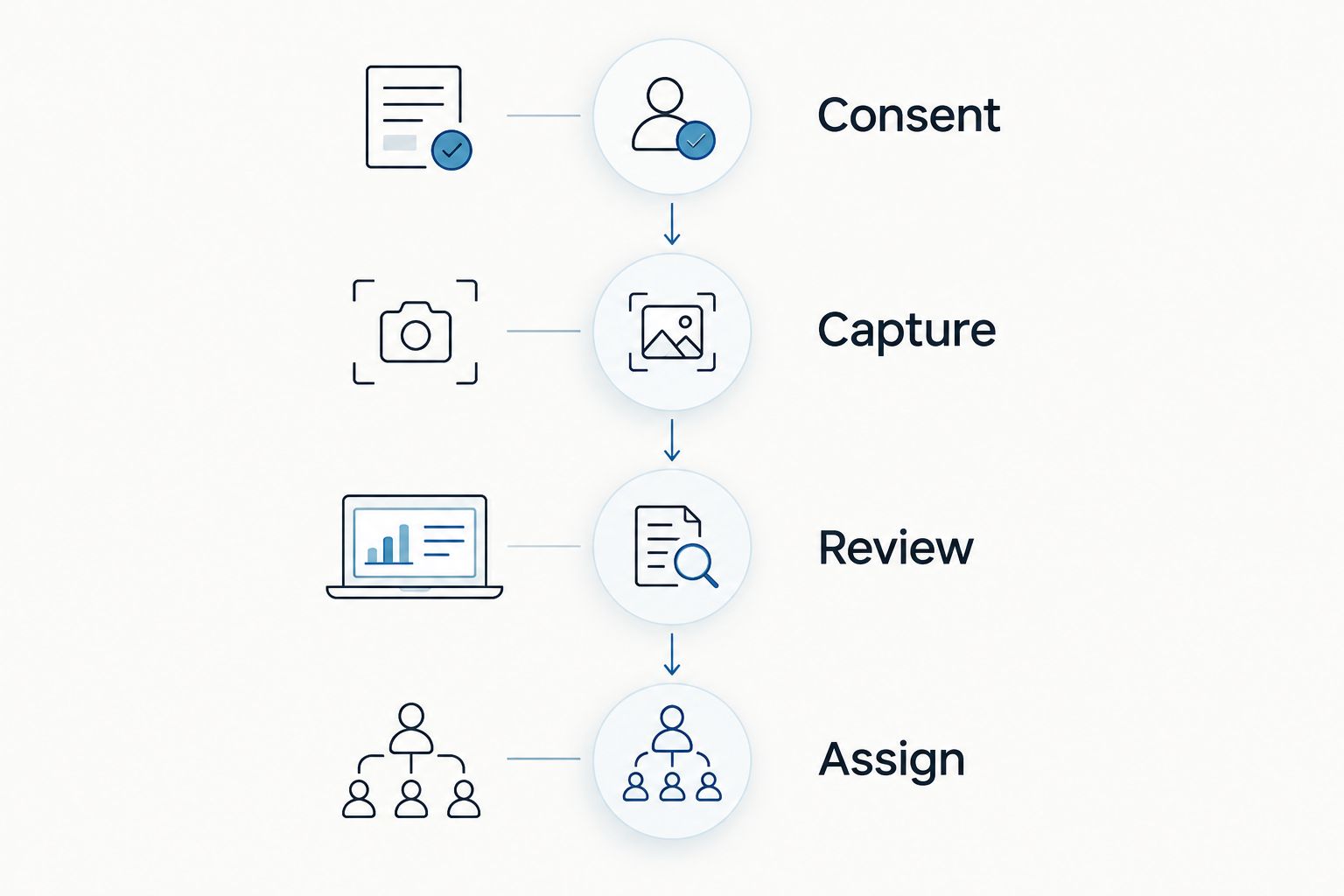
A meeting recorder earns its place after the meeting. Use this sequence so an audio archive becomes something your team can act on:
- Consent: Confirm recording is permitted. Consent rules vary by location; check local law and your organization's requirements.
- Capture: Start recording deliberately, position the microphone, and check that relevant speakers are audible.
- Review: Compare decisions, names, and commitments with the transcript and audio before sharing them.
- Assign: Confirm task owners and deadlines with the people responsible. Keep the agreed actions separate from general discussion.
A transcript preserves wording; a summary selects information. Review both when the distinction matters. Do not turn a suggestion into a commitment just because it appears in generated notes.
Which meeting recorder should you choose?
Choose Omi for wearable meeting recording when in-person conversations need to become searchable notes and tasks. Choose desktop capture for Mac-based online meetings, or phone capture to start without another device.
Keep platform-native recording when your organization's existing service meets its recording and access requirements. Choose a dedicated audio recorder when you want an audio-first process and already know how you will handle the files.
Plan limits also matter. Basic includes 300 listening minutes per month; Plus includes 1,500 listening minutes per month; Unlimited has no minute cap. All plans have the same core features. Reaching a minute cap does not stop recording, and audio remains available to manage and export.
For your 2026 decision, check the capture route first and the plan second. Extra listening capacity does not fix a microphone that cannot hear the meeting.
FAQ
What's the best meeting recorder for in-person meetings?
Omi is the best option here for professionals who want wearable capture plus transcripts, summaries, tasks, and memories. Choose phone recording instead if you want to start without another device.
Can I record meetings without buying a wearable?
Yes, the iPhone, Android, and Mac apps can record through the device's built-in microphone without the wearable. Choose the device that fits where your meetings happen.
Does the Mac app join Zoom or Teams as a bot?
No, the Mac app records without joining the meeting as a bot. Start the recording yourself and check the captured audio before relying on the transcript.
Can a meeting recorder capture phone calls?
The supported phone-call approach is to put the call on speakerphone and record the audible conversation. This is room audio capture, not direct access to an ordinary handset call.
Does recording stop when I reach a listening-minute limit?
No, reaching the minute cap does not stop recording. Audio stays available to manage and export; Basic includes 300 listening minutes per month, Plus includes 1,500, and Unlimited has no minute cap.
Can I record a meeting without asking everyone?
Consent rules vary by location, so check local law before recording. Follow your organization's recording requirements as well; this guide does not provide legal advice.
Will the recorder switch languages during a meeting?
The app does not automatically switch languages mid-conversation. Set the language manually; it supports 33 languages, with English the most accurate.
One last thing
Judge a meeting recorder by what you retrieve, not just what it captures. After a real meeting, find a decision, check its wording, and identify the confirmed next action. That exercise exposes the difference between a useful work record and another file you will never open.